For anyone opening MetaTrader 5 for the first time: from an empty computer to Midas running on the XAUUSD chart. Every step ends with what you should see — if you see it, move on.
RoboForex ProCent → Forex4you Cent →
VPS24hour → VPSforFX ($19.99/month) →
The bot gives you two files: Midas5.ex5 is the advisor itself, and Midas5_<account>.set holds your personal settings with the license key already inside.
Midas needs a hedging cent account: RoboForex ProCent (Pro-Cent MT5) or Forex4you Cent. A regular account works too, but the same settings would then need 100 times more money. Register through the links below — they carry our partner code — and see Open a broker account for every field of the form.
Open a RoboForex account (ProCent) Open a Forex4you account (Cent)
RoboForex asks for the partner code ztpwc twice: at sign-up and again when you open the trading account.
You should see: You have an MT5 account number (login), a password and a server name (for example RoboForex-Pro) from the broker.
Download MetaTrader 5 from your broker's website and install it. On a Windows VPS, connect over Remote Desktop and install it there (see Set up a VPS). On a Mac, install the MetaTrader 5 app from MetaQuotes; the steps below are the same.
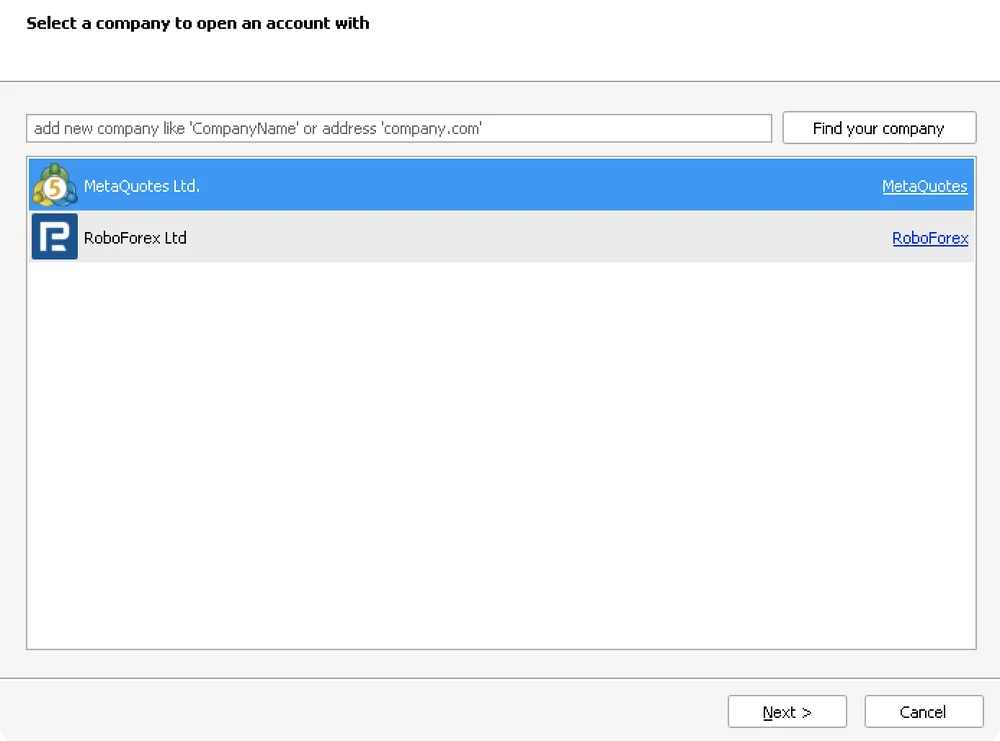
On the first launch MT5 opens an account window: pick your broker (RoboForex Ltd), choose an existing account and enter the login, password and server from step 1. If MT5 is already open, use File → Login to Trade Account.
You should see: Live quotes are moving in Market Watch, your account number is in the window title and the connection indicator at the bottom right shows traffic (for example 55 / 2 Kb).

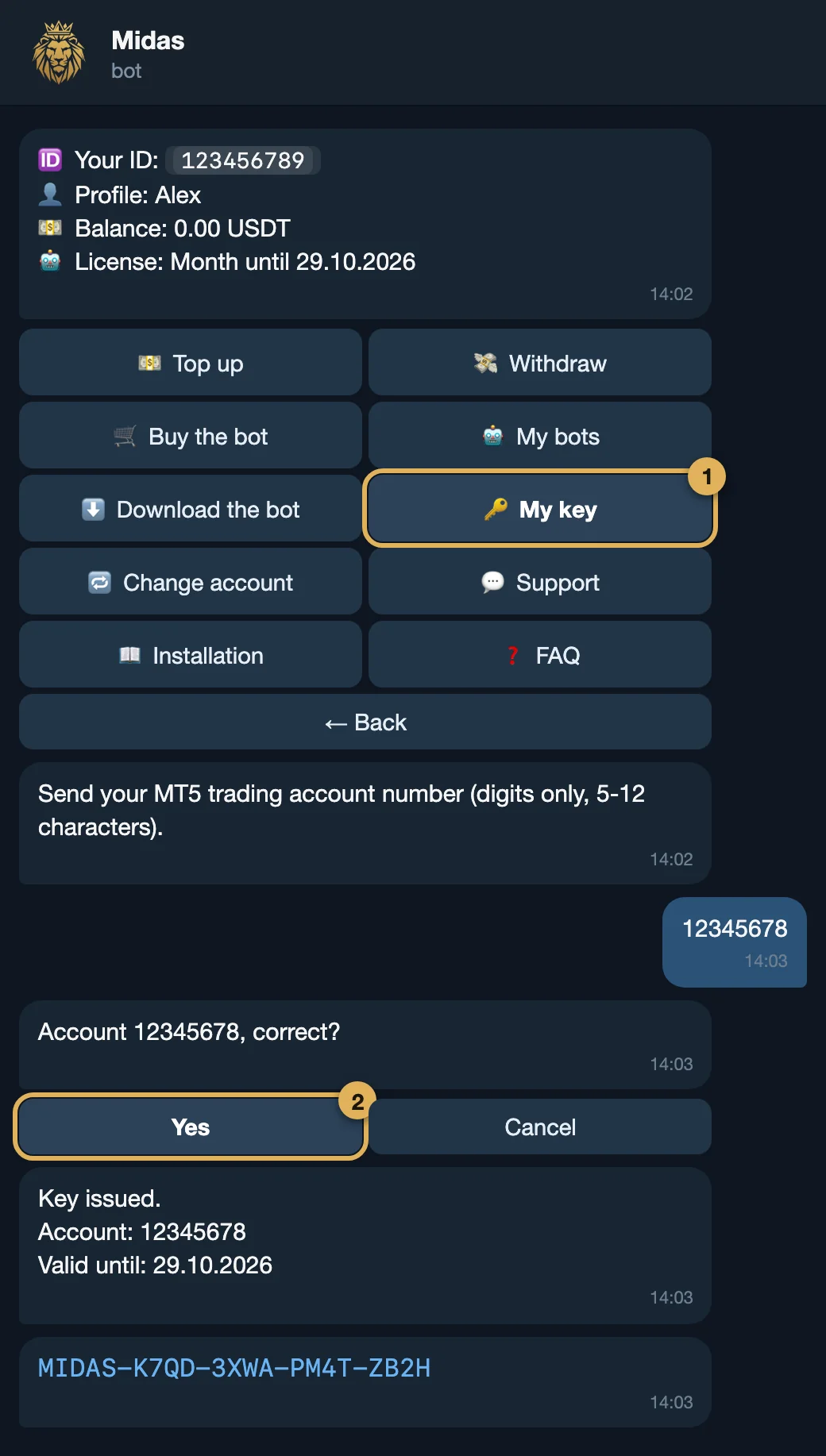
Open @MidasGridBot in Telegram and go to Cabinet → 🔑 My key. If you have not bought a plan yet, choose 🛒 Buy the bot first.
Send the number of your MT5 trading account (digits only — the login from step 2) and confirm it with Yes.
You should see: The bot answers with the account and the expiry date, then sends the key itself (MIDAS-XXXX-XXXX-XXXX-XXXX) as a separate message.
The key belongs to one account number. You do not have to copy it: it is already inside your .set file (step 8). To move to another account later, use 🔁 Change account in the bot.
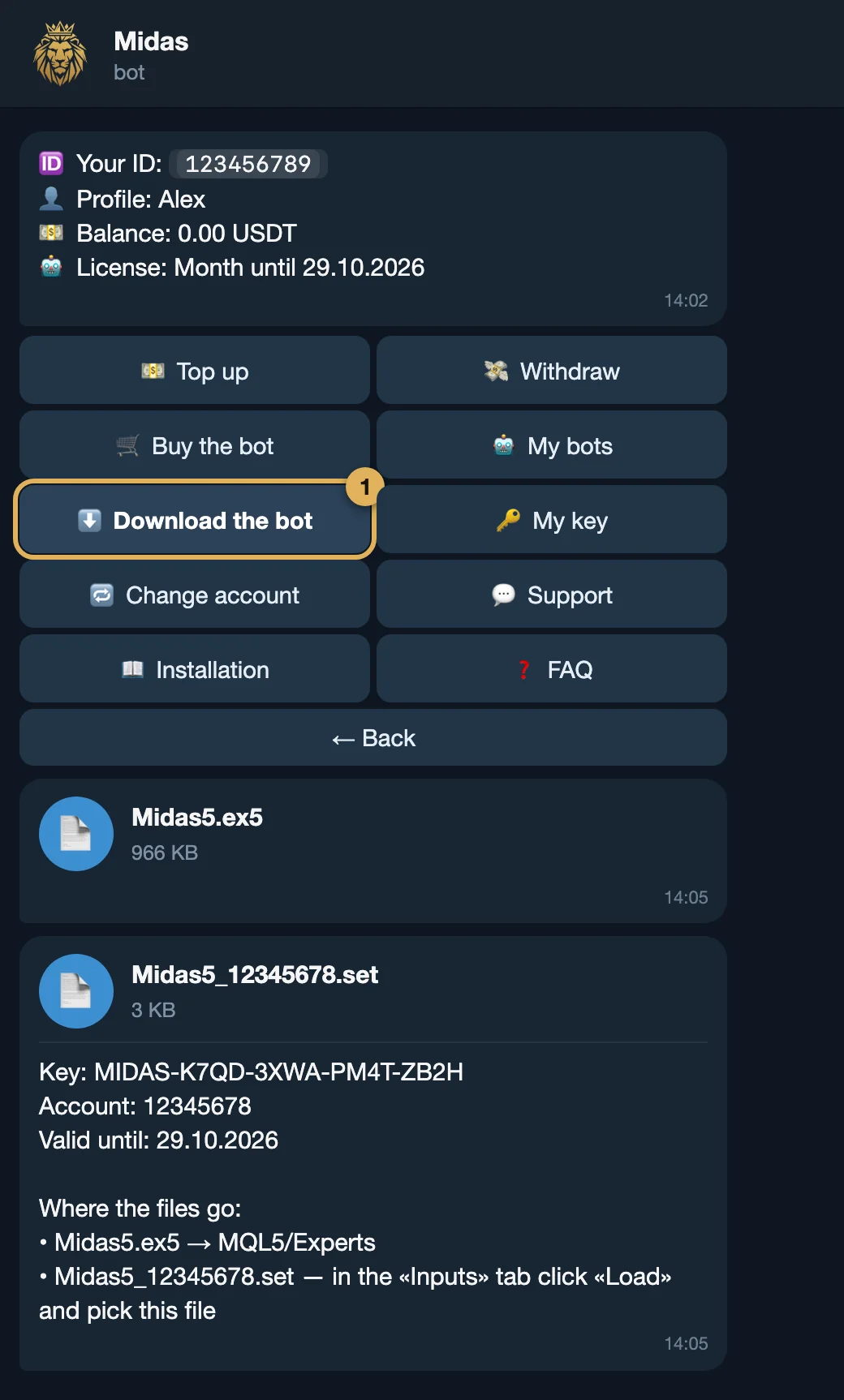
In the cabinet press ⬇️ Download the bot. The bot sends two files: Midas5.ex5 and Midas5_<account>.set. Save both to a folder you will find again (for example Downloads).
Easiest: open Telegram on the same computer (or VPS) where MetaTrader runs, so the files land right there. You can download them again any time while your plan is active.
You should see: Two files in your Downloads folder: Midas5.ex5 and Midas5_12345678.set (with your own account number in the name).
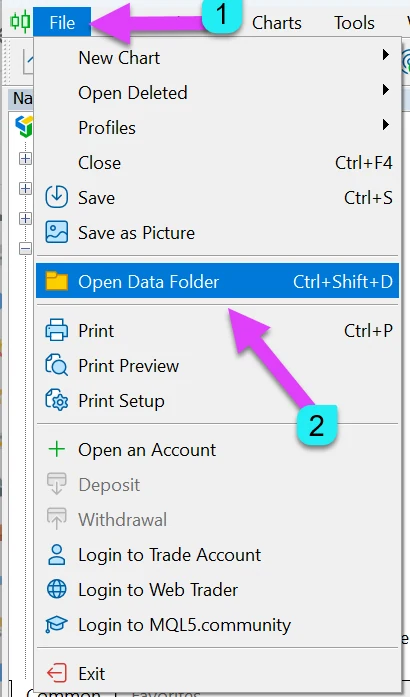
Midas5.ex5 straight into it (not into a sub-folder).Ctrl+N) and choose Refresh.You should see: Midas5 is listed in the Navigator under Expert Advisors.
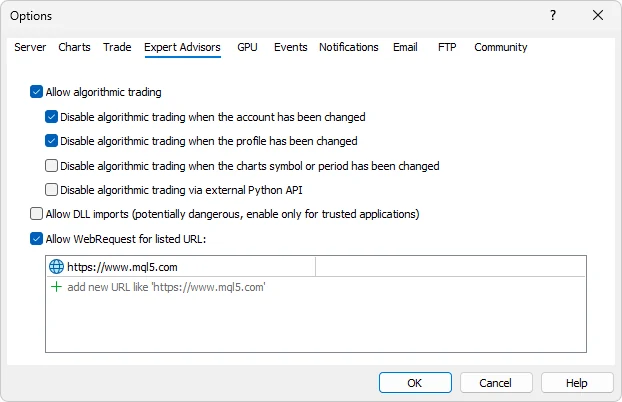
Ctrl+O) and go to the Expert Advisors tab.Address to add (tap to copy):
Midas checks your key on our server (at most once an hour). MT5 blocks every internet request from an advisor unless the address is on this list.
You should see: Both boxes are ticked and https://lic.midasgrid.com is in the list.
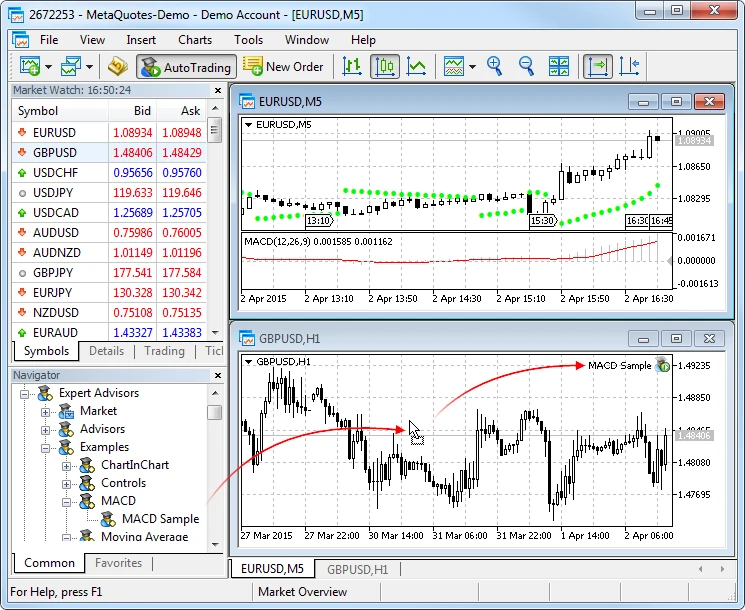
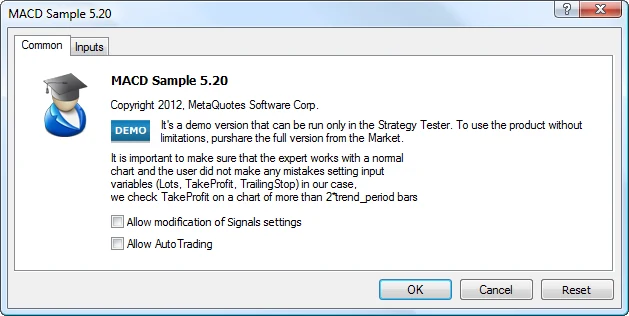
XAUUSD (some brokers add a suffix; use the exact name your broker lists). If you do not see it, right-click Market Watch → Symbols and search for XAU.You should see: The Midas5 properties window opens, with the Common and Inputs tabs.
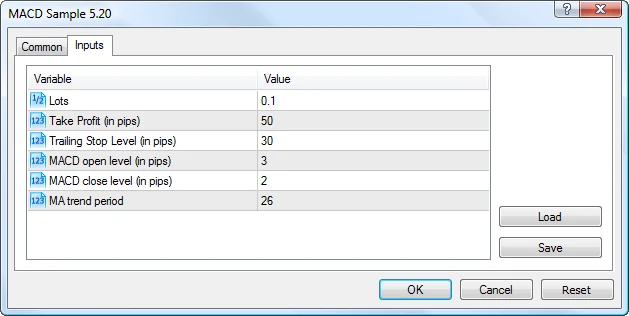
Do not type anything by hand — the key and the license address are inside the file.
Midas5_<account>.set from the folder where you saved it (usually Downloads) and click Open.Leave the other settings alone on the first run — the file already carries the recommended ones.
You should see: After Load, on the Inputs tab LicenseKey starts with MIDAS- and LicenseServer is https://lic.midasgrid.com.
Three quick checks:
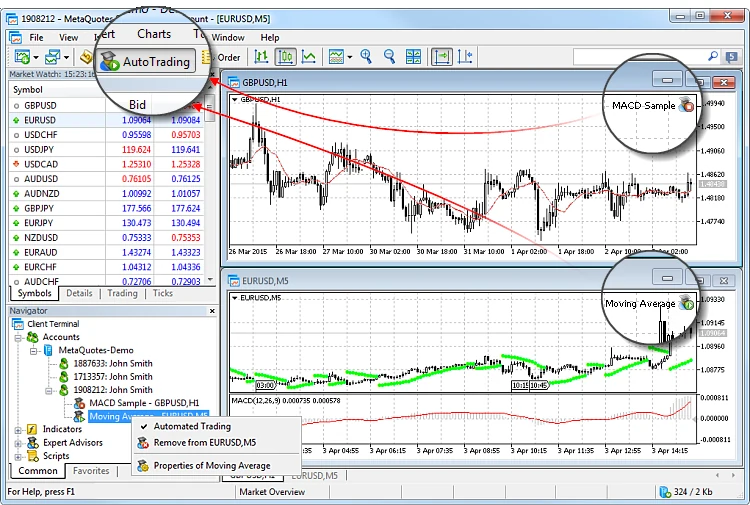
Midas5 with an icon that has a green “play” badge (older builds: a smiley face). A red stop badge, a sad face or a cross means algo trading is off or blocked.Also open the Experts tab at the bottom of MT5 (Ctrl+T): there should be no red errors. The license check runs when Midas is ready to open its first basket, so while the market is closed the status can read “not checked yet” — that is normal.
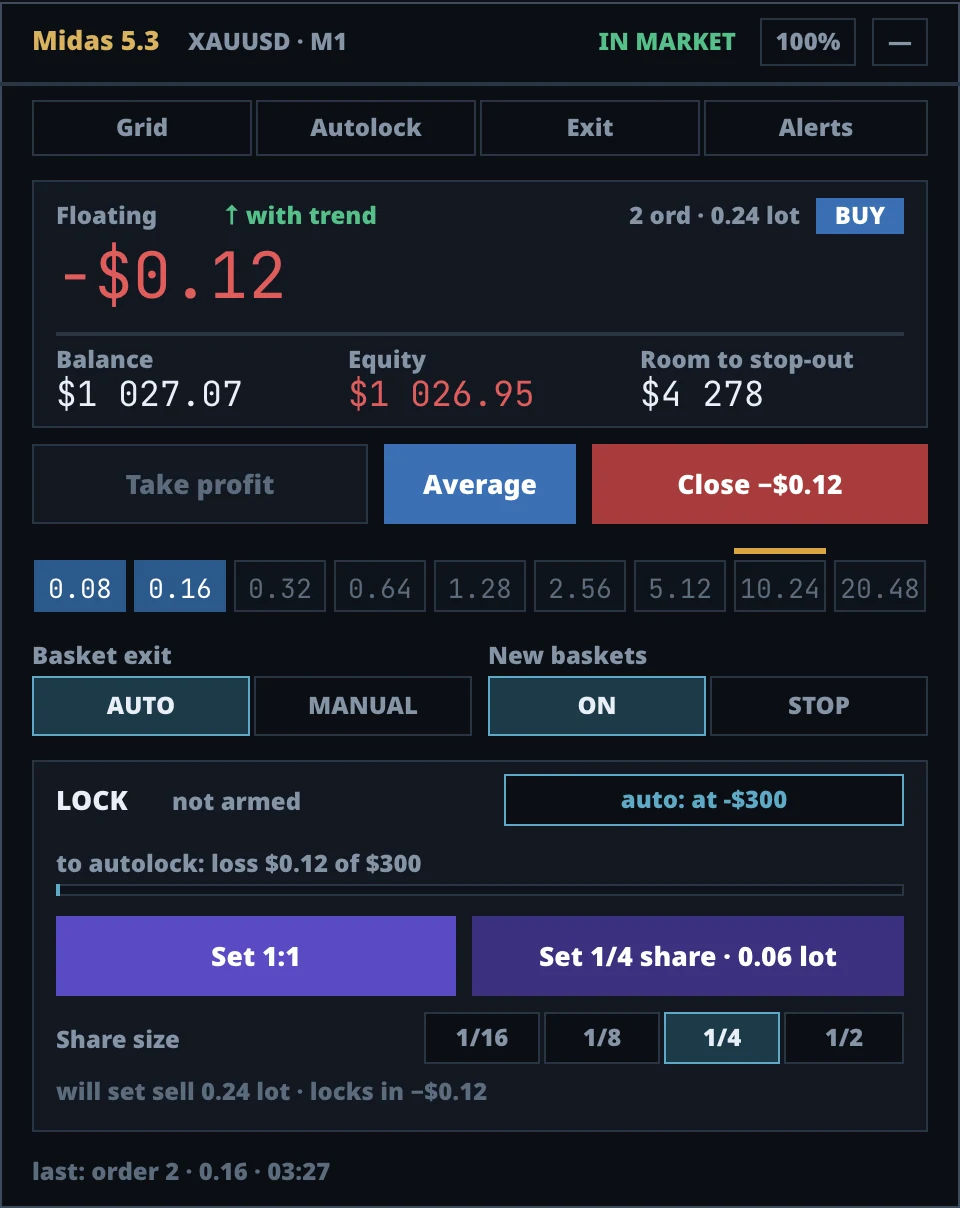
You should see: A green Algo Trading button, the play badge, the Midas panel and a license status that starts with OK.
Find your symptom:
Algo trading is off. Click the Algo Trading button so it turns green. On the chart, right-click → Expert Advisors → Properties → Common and tick Allow Algo Trading. Also check Tools → Options → Expert Advisors → Allow algorithmic trading (step 6).
The license address is not on the allowed list. Repeat step 6 and check every character: https://lic.midasgrid.com — with https://, no spaces, nothing after .com. Then press F3 (Global Variables), delete the variables that start with Midas_Lic_ and attach Midas again; otherwise the next check can wait up to an hour. Also make sure the terminal or VPS has internet.
The key is checked against the account you are logged into. Make sure the .set file name contains exactly that account number. If you changed accounts, press 🔁 Change account in the bot and download the new file. If the plan has expired, extend it in the bot cabinet. Still stuck: 💬 Support in the bot.
Look at the chart's top-right corner: the name Midas5 must be there — if it is not, the advisor is not attached (repeat step 7). Check that the chart is XAUUSD on M1 and that the Experts tab has no errors. If Midas5 is missing from the Navigator, the file is in the wrong folder (step 5) — restart MT5.
Something else? See Troubleshooting or write to 💬 Support in the bot.
Screenshot credits: the MetaTrader 5 windows come from the MetaQuotes documentation (metatrader5.com) and MQL5.com; the Telegram bot screens and the Midas panel are ours.
 Midas
Midas